How to Manage Dependencies in Jira
Most Jira teams manage dependencies reactively, discovering them only when something breaks. A blocked issue delays its successors, which delay theirs, and before long an entire release slips. Poor dependency management is a common cause of missed deadlines, and the problem only gets worse in organizations running multiple concurrent projects.
A dependency in Jira is a relationship between two issues where one issue's start or completion depends on another. When you make these relationships visible, you can spot schedule risks early and keep delivery dates realistic.
This guide covers how to proactively model, visualize, and resolve dependencies in Jira, from native issue links through to Gantt chart-based scheduling that auto-reschedules your entire plan when dates shift.
Understanding Dependency Types
There are four standard dependency types in project management. Knowing which one to use matters, because the wrong link type creates either artificial bottlenecks or false confidence in your schedule.
| Type | Abbreviation | Description | Example | When to Use |
|---|---|---|---|---|
| Finish-to-Start | FS | Task B cannot start until Task A finishes | Backend API must be complete before frontend integration begins | Most common. Use when B genuinely cannot begin until A is done |
| Start-to-Start | SS | Task B can only start after Task A has started | QA testing can start once development starts (on completed features) | Use when tasks can run in parallel but B depends on A kicking off first |
| Finish-to-Finish | FF | Task B cannot finish until Task A finishes | Documentation cannot be finalized until the feature is complete | Use when both tasks run concurrently but B needs A's output to wrap up |
| Start-to-Finish | SF | Task B cannot finish until Task A starts | The old system stays active until the new system goes live | Rare. Mostly used in shift-handover or system-cutover scenarios |
Choosing the Right Type
Default to Finish-to-Start (FS) unless you have a specific reason not to. Most real-world dependencies follow this pattern. Using Start-to-Start where appropriate can shorten your overall timeline by enabling parallel work, but only do this when the tasks genuinely overlap.
Jira's Native Dependency Support
Jira provides a solid foundation for tracking relationships between issues. Out of the box, you get issue link types like "blocks / is blocked by," "is cloned by / clones," and "relates to / relates to." Creating a link takes seconds, the linked issues appear on both issue detail views, and you can filter by link type in basic searches.
For small projects with a handful of dependencies, native issue links may be all you need. Where things break down is at scale:
- No timeline visualization. You can see that issues are linked, but not how they affect the schedule. Native Jira has no dependency arrows on a timeline view.
- No auto-rescheduling. Moving one issue does not automatically adjust dependent issues. You have to manually update every downstream date.
- No critical path analysis. You cannot identify which dependency chains determine your delivery date without manually tracing through every link.
- No lag or lead time. You cannot specify "start 3 days after Task A finishes" or "start 2 days before Task A finishes."
- Limited cross-project support. Dependencies across Jira projects require Advanced Roadmaps, only available on Premium and Enterprise tiers.
Jira Advanced Roadmaps
Jira's Advanced Roadmaps (formerly Portfolio for Jira) does add timeline visualization and cross-project dependency tracking for Premium-tier customers. It is a step forward from basic issue links. However, it does not support all four dependency types (only FS), lacks auto-rescheduling of dependent issues, and has limited holiday calendar support. For teams that need full scheduling capabilities, a dedicated Gantt chart tool fills these gaps.
Finding Dependencies with JQL
Before you can manage dependencies, you need to find them. JQL (Jira Query Language) gives you several ways to surface blocked and blocking issues.
Basic Link-Type Filters
Filter issues that have a specific link type:
issueLink = "blocks"
This returns all issues that either block or are blocked by another issue.
To find only issues that are currently blocked:
issueLinkType = "is blocked by"
Combining with Status
Find issues that are blocked and stuck:
issueLinkType = "is blocked by" AND status != Done AND sprint in openSprints()
This surfaces issues in your current sprint that have unresolved blockers: exactly the items your scrum master should be asking about in standup.
Using ScriptRunner or Advanced JQL
If you have ScriptRunner or a similar app installed, you can use the issueFunction for more powerful queries:
issueFunction in linkedIssuesOf("status = Blocked", "is blocked by")
This finds all issues that are linked (via "is blocked by") to issues currently in "Blocked" status, giving you the full chain of impact, not just the directly blocked items.
Building a saved filter for blocked issues and reviewing it daily is one of the simplest ways to catch dependency problems before they cascade. Consider pairing this with RAG status indicators to flag at-risk dependency chains with red/amber/green signals visible to the whole team.
Visualizing Dependencies with Gantt Charts
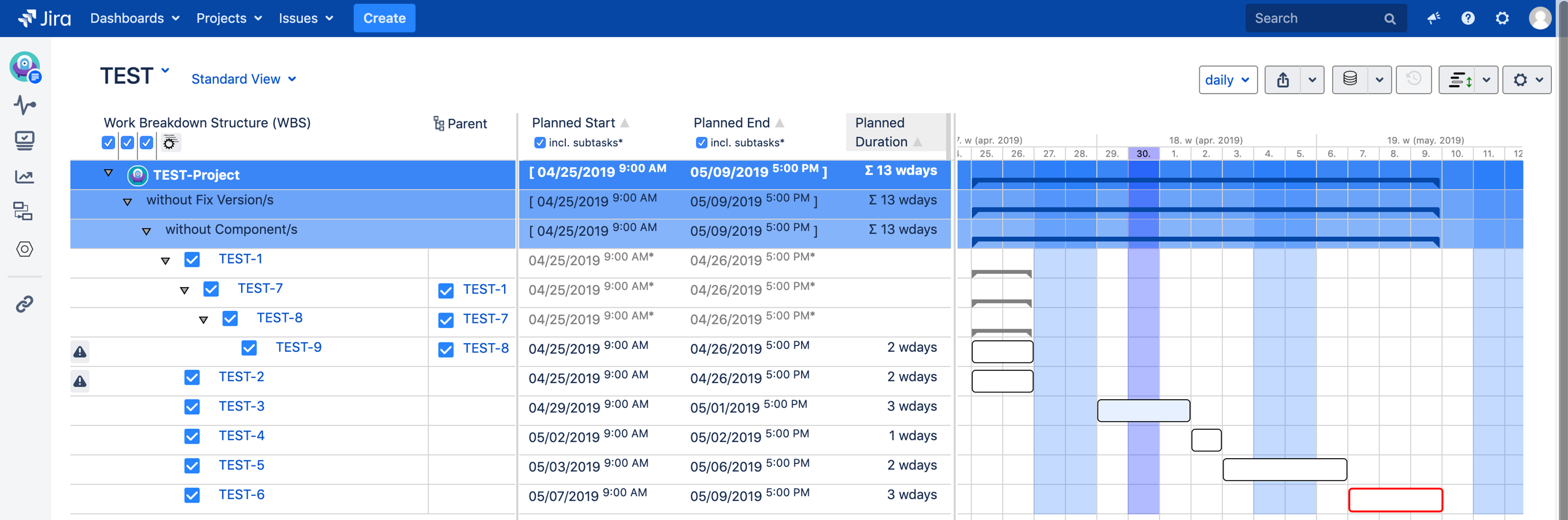
With a Gantt chart, you lay out issues on a timeline and draw dependency arrows between them. You can immediately see:
- Which issues are blocking others
- Where the critical path runs through your project
- What happens to downstream issues when a date slips
Gantt-Chart for Jira, used by over 645 organizations, renders all four dependency types as visual arrows on the timeline, with automatic rescheduling when dates change.
Setting Up Dependencies in Gantt-Chart for Jira
- Link issues in Jira using standard issue links ("blocks / is blocked by")
- Open the Gantt view: dependencies appear as arrows between bars
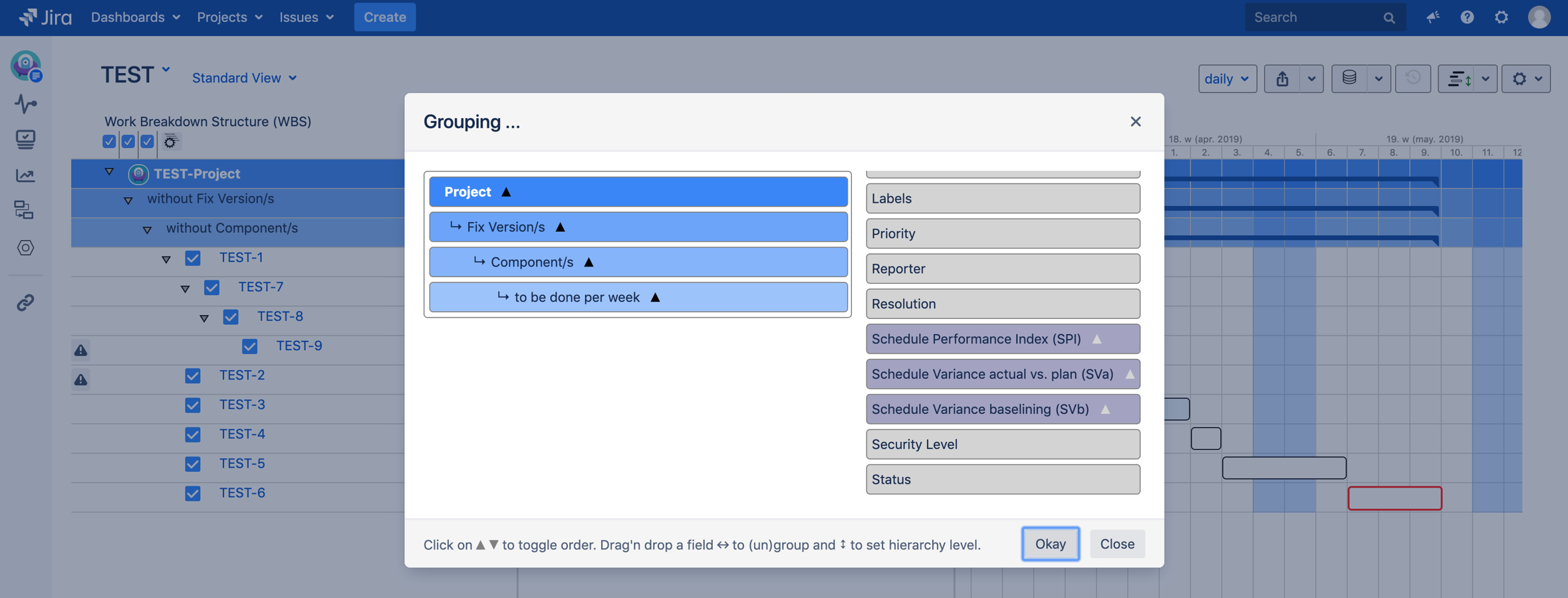
- Drag to reschedule: dependent issues shift automatically based on the dependency type
- Enable auto-scheduling: the chart calculates optimal dates based on dependencies, working days, and holiday calendars for 144 countries
See how Gantt-Chart for Jira handles dependencies. Learn more
Cross-Project Dependencies
Enterprise projects rarely live in a single Jira project. When your API team is in project BACKEND and your mobile team is in project MOBILE, cross-project dependencies are essential.
Gantt-Chart for Jira supports multi-project views where you can see and create dependencies across any Jira projects on a single timeline.
This is available to all customers, no Premium or Enterprise Jira tier required.
Identifying the Critical Path
The critical path is the longest chain of dependent tasks that determines your minimum project duration. Any delay on a critical-path task delays the entire project. Tasks not on the critical path have "float" (also called slack). They can slip by some amount without affecting the delivery date.
A Worked Example
Consider a simplified release with five tasks:
| Task | Duration | Dependencies |
|---|---|---|
| A: Design API schema | 3 days | None |
| B: Build API endpoints | 5 days | A (FS) |
| C: Write API documentation | 2 days | A (FS) |
| D: Build frontend integration | 4 days | B (FS) |
| E: End-to-end testing | 3 days | C (FF), D (FS) |
Forward pass (earliest start and finish dates):
- A starts Day 1, finishes Day 3
- B starts Day 4, finishes Day 8
- C starts Day 4, finishes Day 5
- D starts Day 9, finishes Day 12
- E starts Day 13, finishes Day 15 (it also needs C to be finished, but C finishes Day 5, not the binding constraint)
Backward pass (latest start and finish without delaying the project):
- E must finish Day 15, so it must start by Day 13
- D must finish by Day 12, so it must start by Day 9
- B must finish by Day 8, so it must start by Day 4
- C must finish by Day 15 (FF with E), so it could start as late as Day 14
- A must finish by Day 3
Float calculation:
- A: 0 days float (critical)
- B: 0 days float (critical)
- C: 10 days float (Day 4 earliest start vs. Day 14 latest start)
- D: 0 days float (critical)
- E: 0 days float (critical)
Critical path: A -> B -> D -> E (total 15 days)
Task C has 10 days of float. It can slip by up to 10 days without delaying the release. The critical path tasks (A, B, D, E) have zero float: any delay directly pushes out the delivery date.
What This Means in Practice
Issues on the critical path deserve extra attention: more frequent status updates, earlier escalation, and buffer time where possible. Issues with float give you breathing room, but keep an eye on them, because as float shrinks they move closer to becoming critical.
Gantt-Chart for Jira highlights the critical path automatically, so you don't have to calculate this by hand. When a task slips, the chart recalculates and shows you immediately whether the delivery date has moved.
Common Dependency Problems (and Fixes)
Circular Dependencies
Issue A blocks B, B blocks C, and C blocks A. Nothing can start. This usually indicates a design problem. Break the cycle by identifying which dependency is actually softer than assumed.
Hidden Dependencies
Two issues don't have an explicit link, but they both modify the same code or share a resource. These are the most dangerous because they're invisible until they cause a conflict. Encourage teams to link issues proactively during sprint planning.
Some dependencies aren't task-to-task but are approval gates: one issue can't proceed until a stakeholder signs off. If your workflow includes approval steps, see our guide on setting up approval workflows in Jira for a structured approach.
Over-Linking
Not every relationship is a dependency. "Related to" is not "blocked by." If Task B could technically start without Task A finishing, don't create a Finish-to-Start link. Over-linking creates artificial bottlenecks and makes your Gantt chart unreadable.
Long Dependency Chains
A chain of 10+ sequential dependencies means any single delay cascades through 10 issues. Look for opportunities to parallelize: can some tasks start before their predecessor fully completes (Start-to-Start)?
Best Practices for Dependency Management
- Link during planning, not during crisis: add dependency links in sprint planning or backlog refinement, not when something is already blocked
- Use the right link type. "Blocks" vs. "is blocked by" matters for visualization and scheduling direction
- Review dependencies weekly: as scope changes, dependencies become stale. Remove links that no longer apply
- Keep chains short. Prefer parallel work over sequential chains. If a chain exceeds 5 issues, look for ways to decouple
- Account for non-working days: use holiday calendars so your timeline reflects reality rather than calendar math
- Visualize cross-project. Dependencies within a project are easy to track, but cross-project dependencies are where most surprises come from
- Combine with status indicators: pair dependency tracking with RAG status indicators so stakeholders can see at a glance which dependency chains are at risk
Key Takeaways
- Four dependency types exist (FS, SS, FF, SF), but Finish-to-Start covers 80%+ of real-world cases. Use others deliberately to enable parallel work.
- Native Jira links are a starting point, not a solution. They track relationships but cannot visualize timelines, auto-reschedule, or calculate the critical path.
- The critical path determines your delivery date. Tasks on it have zero float, so any delay directly pushes out the release. Know which tasks are on it.
- JQL saved filters for blocked issues are a low-effort, high-impact practice. Review them daily to catch cascading delays early.
- Gantt chart visualization turns invisible dependency chains into actionable project intelligence. Auto-rescheduling keeps the plan honest when reality shifts.
From Reactive to Proactive
When you manage dependencies proactively, you stop asking "why is this blocked?" and start asking "if this slips by 2 days, what's the impact?" That shift only happens when every dependency is visible on a shared timeline.
Start a free trial of Gantt-Chart for Jira to visualize your project dependencies, identify the critical path, and auto-reschedule when plans change. Used by over 645 organizations across Cloud, Data Center, and Server. Set up takes minutes, not days.