How to Add a Release Approval Gate in Jira Cloud
Jira Cloud has a Release action for versions, but no approval step in front of it. Anyone with the right permission can release a version on their own, so there is no four-eyes check and no audit trail of who approved the release. Atlassian's own documentation says that users with the relevant space-administration or Manage versions permission can mark a version Released. It does not describe a native rule that waits for engineering, security, or release management to sign off first.
That gap is tracked in JRACLOUD-92893 (originally filed as JSWCLOUD-16329), Atlassian's suggestion to add an approvals feature for releasing versions. As of October 2026, the request is unresolved and marked In Progress. Questions in the Atlassian Community, including "Jira Release Approval" and "No possibility to add approver to release version", show why teams keep looking for a workable design.
Adding approval to a separate Jira work item (issue) does not, by itself, disable the native Release version button. A release gate that holds up must connect four controls:
- A Release work item containing the scope and target version
- A recorded approval decision
- A permission scheme that prevents ordinary users bypassing the decision
- Automation that performs the actual version release after approval
This guide builds that end-to-end path with Group Sign-Off and Jira Automation.
What Jira Controls Natively
Jira versions have three states: Unreleased, Released, and Archived. A user with Manage versions can create, edit, release, unrelease, archive, merge, or delete versions. Atlassian documents the native behavior in Manage versions.
That permission is useful administration, but it is too broad to represent a release decision:
- It does not collect several independent approvals.
- It does not support an M-of-N quorum.
- It does not require a decline reason.
- It does not stop an authorized user from releasing before a separate approval ticket is complete.
Jira Service Management approvals are a valid native option for change requests. They can gate the workflow of a JSM work item. The release version remains a separate Jira Software operation, however, so the same permission and automation questions still apply.
Choose the Enforcement Level
You can implement this pattern in two ways.
Option A: controlled manual release
Create and approve a Release work item, remove Manage versions from developers and ordinary project members, and retain it only for a small Release Managers group. A release manager verifies the approved record and then uses Jira's Release action manually.
This is a policy-backed control. It can be appropriate when release volume is low or when a human must perform additional checks outside Jira. It is not an unbypassable technical gate: a release manager with permission can still ignore the procedure.
Option B: automated release after approval
Create the same Release work item, but let its approved transition trigger Jira Automation's native Release version action. Remove Manage versions from ordinary users and give the automation actor the permissions it needs. Keep a narrowly controlled administrative group for recovery.
This makes the approved workflow the normal path to the version release. Jira administrators can still reconfigure permissions and automation (as administrators can with any Jira control), but release participants cannot casually bypass the approval through the Releases screen.
The rest of this guide implements Option B. Option A uses the same approval setup and stops before the automation step.
The automation instructions below target Jira Cloud. Group Sign-Off is also available for Data Center, but the mechanism that releases a version must be designed and validated against the automation or API capabilities of the installed Jira Data Center version.
Build the Gate End to End
Step 1: model one release as one work item
Create a Release work type, or reuse a deployment or change work type if it already represents the same control. A useful workflow is:
Planned → Awaiting Approval → Approved for Release → Released
Store the target Jira version on the work item. The native Fix versions field can work if each Release work item carries exactly one target version. A dedicated single-value field is safer if your delivery work commonly uses several fix versions. Link supporting test results, release notes, deployment plans, and the shipped work instead of copying them into approval comments.
Guard that field once approval starts. The decision covers the work item, not the version it names, so if someone edits the target version after sign-off, the release rule releases the new value. One way to close this: an automation rule that moves the work item back to Planned when the field changes in Awaiting Approval or Approved for Release, with the [Group Sign-Off] Reset decisions post-function set to Reset all decisions on that transition. Its other modes act only on whoever runs the transition, which here is the automation actor.
If the Release work item lives in a central release-management space while the version belongs to another software space, do not assume Fix versions can reference it. Jira versions belong to a space. Store an unambiguous space key and version ID or name instead, scope the automation rule to the involved spaces, and test the lookup. Keeping the Release work item in the same software space as the version is the simpler design.
Keep one release per record so that automation can identify one exact version. Silently choosing the first item from a list is not a control.
Step 2: configure the approval decision
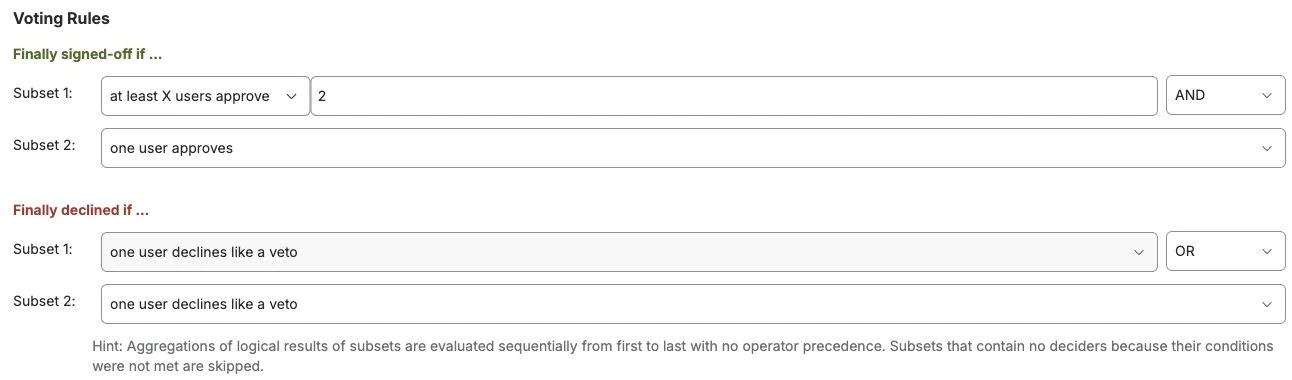
Add a Group Sign-Off field to the Release work type and configure its deciders (approvers). A typical release has separate subsets (approval groups) for Engineering, Security, and Release Management.
Choose the voting logic deliberately:
- Use parallel processing when the reviews are independent.
- Use sequential processing only when one review depends on another.
- Use an M-of-N quorum when any M qualified members of a larger group may approve.
- Require unanimity only when the policy requires every named participant.
For separation of duties, configure a four-eyes exclusion in each subset against the field that identifies the release author (often Reporter, sometimes Assignee or another owner field). Do not call this “author exclusion” without defining which Jira field carries that meaning.
Group Sign-Off can also make a comment mandatory on decline. Enable that option when the rejection reason is part of the release record.
Step 3: gate the Release work item transition
Configure the decision to start when the Release work item enters Awaiting Approval. Group Sign-Off evaluates the rules at that point. A scripted rule skips the start conditions and starts as soon as the script returns approvers, so put the status check into the script. What happens when a field the rules depend on changes later depends on how the deciders are defined. With standard conditional subsets, changing a referenced field updates who still has to decide, and decisions already recorded stay valid. A scripted rule never adds approvers after the decision starts: if an edited field would bring in someone new, nothing changes and a comment on the work item says so. Depending on how the script is written, it can still drop pending approvers it no longer returns. Once a decision is final, it isn't recalculated. Resetting the approval evaluates the rules again. If the requirement must not change during review, don't base conditions on fields that can be edited during approval.
Next, add the [Group Sign-Off] Blocking transitions condition to the transition into Approved for Release, with the mode Allow this transition only if the decision is finally approved, or configure the app's approved-result auto-transition. The condition gates the work item's transition, but it does not control Jira's version Release action. That distinction is why the permission and automation steps below are mandatory for Option B.
Step 4: close the direct-release path
Review the space permission scheme and remove Manage versions from developers, broad project roles, and groups that should not release independently. Atlassian documents that this permission grants the ability to release and unrelease versions.
This isolation is clearest in a company-managed space, where permission schemes are explicit. Team-managed spaces use access roles, and Jira's Free plan does not allow those role permissions to be customized. Verify that your space type and plan let you isolate release administration. If they do not, describe the approval as a procedural control rather than an enforced gate.
Grant the required permission to the Jira Automation actor used by the rule. Jira's default actor is Automation for Jira, and Atlassian notes that rule actions execute with the actor's permissions. Depending on the permission scheme, that may mean granting the relevant permission to the app-access project role or choosing a dedicated user as the rule actor.
Retain a small administrative recovery group and document when it may bypass automation, for example to recover from a failed rule during an incident. Administrative override should be visible and exceptional, not the normal release path.
Step 5: release the exact version with Jira Automation
Create an automation rule with this shape:
- Trigger when a Release work item transitions to Approved for Release.
- Confirm that the work type is Release.
- Confirm that exactly one target version is present and still unreleased.
- Use the Release version action and select that specific version through the field's smart value.
- If the release succeeds, transition the work item to Released.
- Notify the release owner when the rule fails and inspect the automation audit log.
Do not leave the action at its default “next unreleased version” behavior. The approval record and the released version must identify the same target deterministically.
Automation is part of the control, so treat it like production configuration: restrict who can edit the rule, set an owner who receives failure notifications, and test the actor's permissions. Atlassian recommends verifying executions in the automation audit log.
Step 6: test the bypasses, not only the happy path
Use test accounts with the same roles as real participants and prove all of the following:
- A normal release participant cannot use the native Release version action.
- The Reporter or configured author field is excluded from approval.
- The transition remains unavailable before the configured quorum is complete.
- A decline requires a reason when that option is enabled.
- Editing a referenced field after the decision starts behaves as configured: standard conditional subsets update who still has to decide, and a scripted rule adds nobody new (it comments instead), though depending on the script it can drop pending approvers it no longer returns.
- Changing the target version after approval sends the work item back to Planned and clears the decision.
- The approved transition releases the intended version, not the next similarly named version.
- A failed automation action leaves the work item out of Released and produces a visible audit-log failure.
What Parallel Approval Changes
Parallel approval removes waiting that exists only because reviews were placed in sequence. If Engineering, Security, and Release Management can assess the same release independently, starting all three groups together makes completion depend on the slowest required group rather than the sum of all three review times.
That does not guarantee a particular turnaround time. Review complexity, time zones, absences, and quorum design still matter. Use sequential approval where one group needs another group's output. Otherwise, parallel groups are usually the more efficient structure.
Compare the Three Release Paths
| Capability | Native version release | Approved work item, manual release | Automated gate with Group Sign-Off |
|---|---|---|---|
| Multi-person decision | None on the Release action | Recorded on the Release work item | Recorded on the Release work item |
| Direct-release bypass | Any holder of Manage versions can release | Restricted to release managers | Restricted to automation and recovery admins |
| Quorum and parallel groups | Not available on the Release action | Configurable in Group Sign-Off | Configurable in Group Sign-Off |
| Separation of duties | Depends on permission assignment | Configurable field-based exclusion | Configurable field-based exclusion |
| Decline reason | No structured release-approval path | Can be made mandatory | Can be made mandatory |
| Actual version release | Manual click | Manual click after approval | Jira Automation after approval |
| Evidence | Version state | Decision history plus version state | Decision history, workflow history, automation audit, and version state |
Build an Evidence Package
Group Sign-Off records approvals, declines, delegations, participants, and timestamps in its decision history. Jira adds the Release work item's workflow history, and Jira Automation records the rule execution that released the version. Link the shipped work and supporting release material to the same record.
Together, those artifacts can support a release-control review:
- Who was required to decide
- Who approved or declined, and when
- Why a release was declined
- Which version the decision covered
- Which work shipped in that version
- Whether automation successfully released it
- Who retained permission to override the normal path
Do not claim that installing an app makes a process compliant with SOX, ISO 26262, or another framework. The evidence is useful only when the configured control matches the organization's policy and is operated consistently.
Getting Started
Group Sign-Off is available for Jira Cloud and Data Center. For the Jira Cloud release-gate pattern in this guide, expect to configure the approval field, the Release work item's workflow, version permissions, and Jira Automation. A Data Center implementation needs its own validated release mechanism. Test the complete design in a sandbox with representative roles before applying it to a production release process.
Start a free trial on the Atlassian Marketplace, or review the Group Sign-Off product capabilities before designing the gate.
If your control specifically requires independent reviewers, continue with our guide to the four-eyes principle in Jira.