How to Require Different Approval Quorums per Group in Jira
A purchase request may need Finance to approve the budget and Procurement to review the supplier. Production changes can require Engineering and Security reviews. Access to sensitive data may also need the data owner's approval.
A combined approval count can reach its target while a required group has given no approvals. Define which groups must approve and how many approvals each needs, then check whether Jira's native settings can express that rule.
Start with Native Approvals
Atlassian's Jira Cloud approval setup guide documents approval steps in company-managed projects. You select an approver source, choose a required number of approvers, and choose the approved and declined transitions. Jira Software offers native approval steps as well as Jira Service Management. Availability depends on your plan and project type.
The same guide documents Exclude approvers from. Users in the selected fields cannot approve work items using that workflow. Select Reporter and Assignee when your policy requires both the requester and the person doing the work to be excluded.
JSM also supports group approvals. Atlassian's approval workflow properties documentation describes a required number of people from each group. That configuration uses one count shared by the selected groups. It can express "one from each group" or "two from each group".
Use native approvals when the shared count and configured exclusions meet your requirement.
Where Different Group Thresholds Matter
Consider a production change that needs two of three senior engineers to approve, plus one member of Security. Engineering and Security can review at the same time, but neither team's approvals can replace the other's. Three Engineering approvals are still insufficient if Security has not approved.
These approval rules produce different outcomes:
| Rule | What satisfies it? |
|---|---|
| Three approvals from one combined list | Any three eligible people, potentially all from Engineering |
| Two approvals from each group | Two Engineering and two Security approvals |
| Two Engineering approvals and one Security approval | Each group meets its own, different threshold |
To require two Engineering approvals and one Security approval, each group needs an independent quorum. A two-of-three Engineering quorum can proceed while one engineer is away. JSM's shared count cannot express those thresholds in one approval step. You could split the decision into separate workflow steps, but that changes the process if the teams are meant to review in parallel at a single gate.
Configure Group Quorums with Group Sign-Off
1. Define each group and its threshold
Open the approval field configuration in Group Sign-Off for Jira Cloud. Create an Engineering subset with its approver pool and a two-approval threshold. Create a separate Security subset requiring one approval. Set the decline and timeout behavior for the process.
Write the policy in plain language next to the configuration: "Two Engineering reviewers and one Security reviewer must approve before implementation."
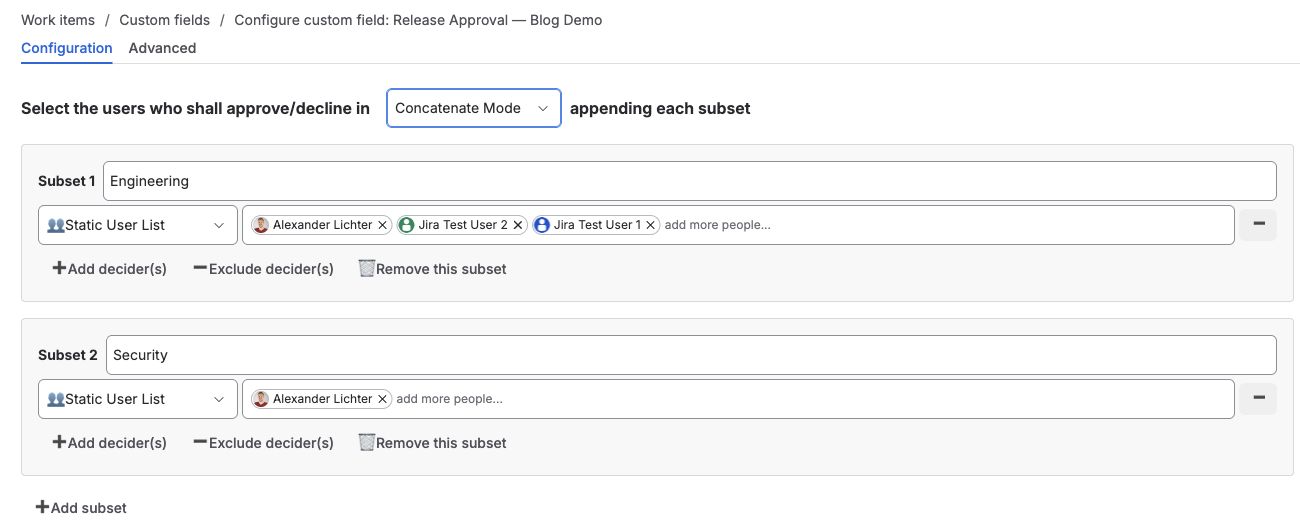
Saved configuration in the development site. Engineering and Security are demo role labels using existing development users: three in Engineering and one in Security. Alexander Lichter belongs to both subsets, so the groups do not represent independent reviewers.
2. Combine the group rules explicitly
For this example, use parallel processing so reviewers can decide without waiting for an earlier participant. Combine the required group outcomes with AND so both thresholds must be met. An OR rule would let one group's result satisfy the decision without the other.
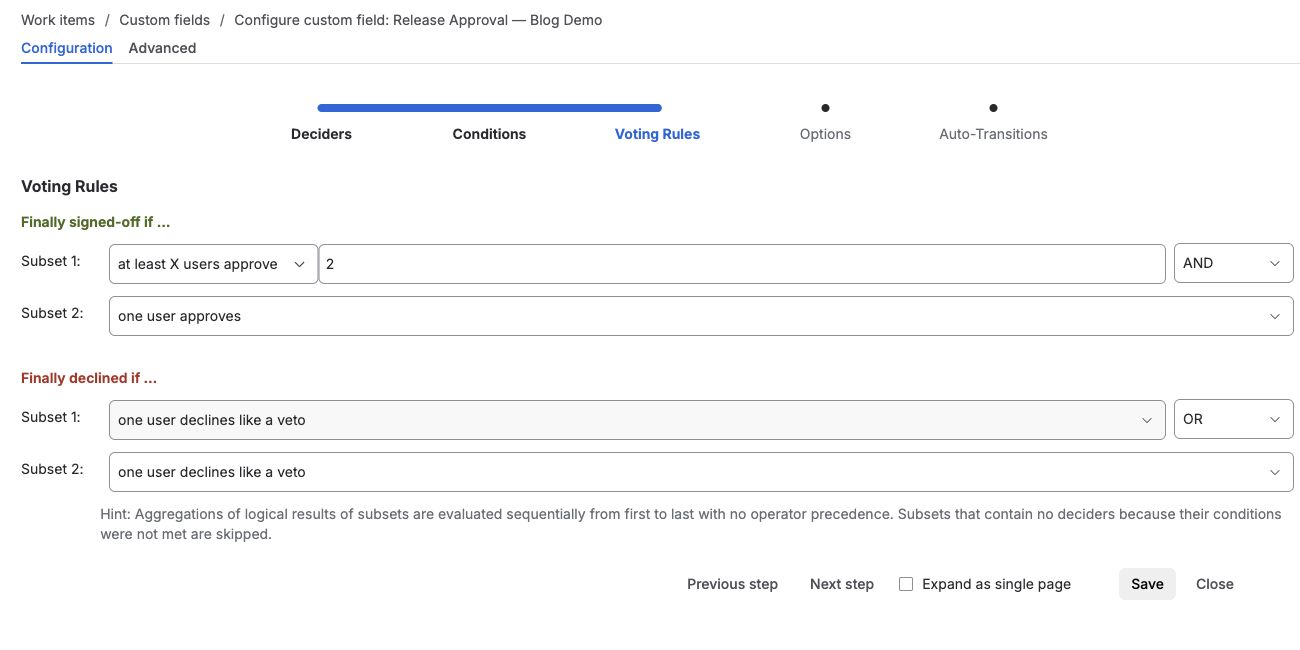
The saved rules require two Engineering approvals AND one Security approval. This screenshot shows the configuration. It does not show a completed approval or a workflow gate test.
3. Configure exclusions
Administrators must configure exclusions for each approval field. Add the 4-eyes principle exclusion and select the relevant user field, such as Reporter or Assignee. Configure both when both roles must be excluded, and check each group in the approval configuration.
If a separate user field identifies the person who built the change, include it in the exclusions and make sure the team populates it. Choose fields that identify the conflicting roles in your policy.
4. Gate the transition
Attach a Group Sign-Off workflow condition to the transition that authorizes implementation. Select the approval field and require the decision to be finally approved. Audit the other outgoing transitions too, so an alternative route does not bypass the approval policy.
For the example, with no declines or timeouts, the gate remains unavailable with two Engineering approvals and no Security approval, or with one Engineering approval and one Security approval. It becomes available once Engineering has two and Security has one.
5. Keep the decision record
Group Sign-Off records decisions with the participant, timestamp, and outcome in the app's decision history on the work item. Enable required decline comments if your process needs a written rejection reason. Keep the change description and supporting evidence on the issue so reviewers can see what they are approving. You can find work items by decision and participant attributes with JQL.
Native Approvals vs. Independent Group Quorums
| Capability | Native Jira Cloud / JSM | Group Sign-Off |
|---|---|---|
| Minimum count from an approver pool | Supported | Supported |
| Same required count from each group | Supported in JSM group approvals | Supported |
| Different thresholds per group in one approval | Not offered by the documented shared-count configuration | Independently configurable |
| Exclude users in Reporter or Assignee | Configurable in the approval step | Configurable per approval field using 4-eyes principle |
| Attributed approval history | Native approval records | Recorded decision history on the issue |
| Parallel voting or sequential decision-making | Check your workflow's available configuration | Configurable |
Verify the Rule Before Using It
Try the cases that could weaken the policy:
- Two Engineering approvals without Security must leave the gate blocked.
- One Engineering approval plus one Security approval must leave it blocked.
- Two Engineering approvals plus one Security approval must satisfy it.
- A user in an excluded field must not count toward the configured group's quorum.
- A decline must follow the configured rejection rule and collect a reason if required.
Count the reviewers who remain eligible after exclusions. A three-person pool with one excluded requester may have only two eligible reviewers for that issue.
Conclusion
Use native Jira approvals when their counts and exclusions match your policy. If you need two Engineering approvals and one Security approval at the same gate, give each group its own count. That way, extra Engineering votes can't make up for a missing Security review. Check for overlapping membership too, since separate groups don't necessarily mean separate reviewers.
You can try this rule with Group Sign-Off for Jira Cloud in a test project. Run the checks above before applying it to live approvals.